Ultimate 2026 Streaming Troubleshooting Guide: Fix 8 Issues Fast
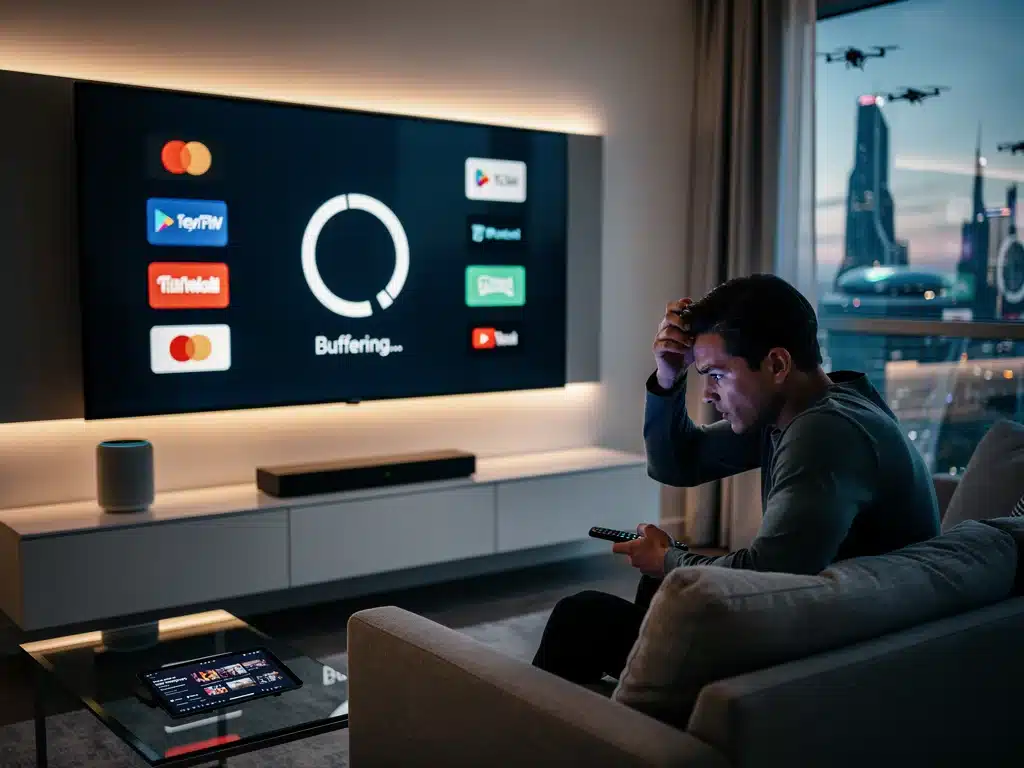
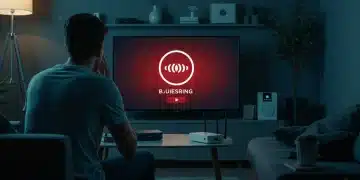
Few things ruin movie night faster than constant buffering, sudden audio drops, or cryptic digital error codes. Consulting a comprehensive Streaming Troubleshooting Guide gives you the exact technical fixes needed to eliminate playback glitches and restore crystal-clear video playback in minutes.
Resolving home Wi-Fi congestion, clearing corrupted app caches, and updating smart TV firmware instantly fixes most playback errors. These practical media player optimizations prevent unexpected platform crashes and ensure stable, high-definition video delivery across all your entertainment apps.
Troubleshooting playback failures doesn’t require technical expertise—just a systematic approach to identifying network and device bottlenecks. Here is how to fix the eight most common digital entertainment glitches fast and enjoy uninterrupted viewing.
Addressing Persistent Buffering and Lag
Buffering and lag remain among the most exasperating streaming problems, often transforming an enjoyable viewing session into a series of stops and starts. These issues typically stem from insufficient bandwidth, network congestion, or a weak Wi-Fi signal.
Understanding that buffering isn’t always about your internet speed but often about how that speed is being utilized is crucial. Multiple devices consuming bandwidth simultaneously, or inefficient network settings, can severely impact your streaming quality.
This section details a systematic approach to diagnose and resolve persistent buffering, ensuring your connection can handle the demands of high-definition streaming. These steps are integral to effectively utilizing The Ultimate 2026 Troubleshooting Guide.
Optimizing Your Network Connection
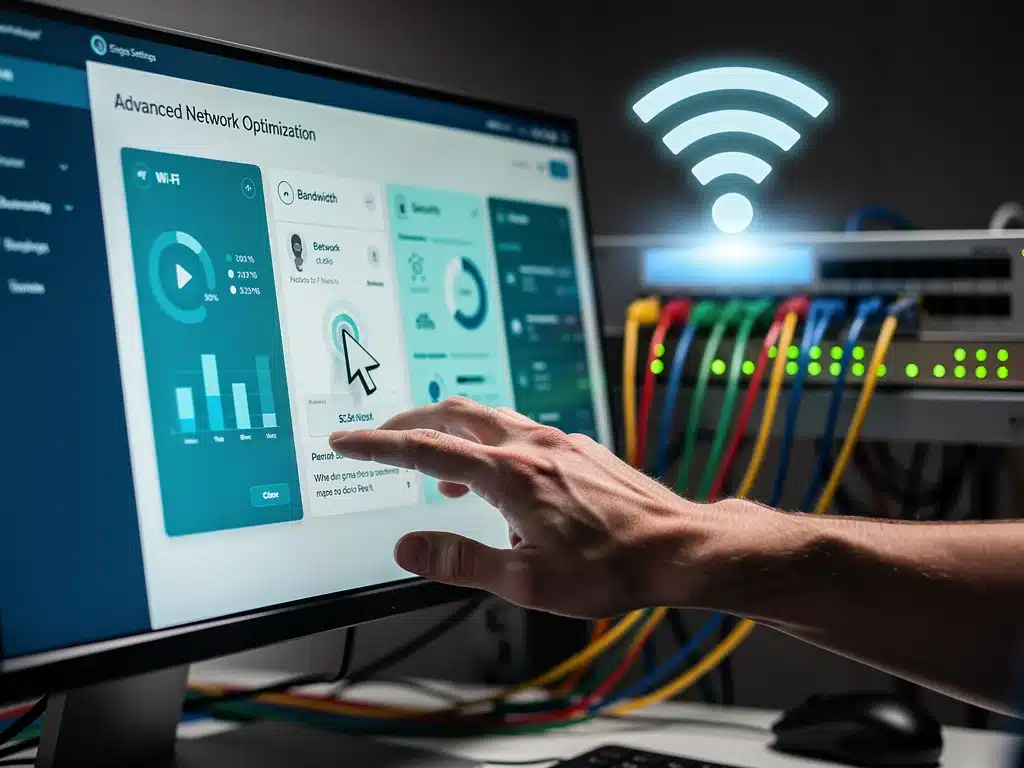
A strong and stable network connection is the backbone of any good streaming experience. Begin by checking your internet speed using a reliable online test to confirm you’re receiving the bandwidth you pay for.
If your speeds are lower than expected, try restarting your router and modem. This simple action can often clear temporary network glitches and re-establish a more robust connection. Consider moving your router to a central location to improve Wi-Fi signal distribution.
- Test internet speed on multiple devices.
- Restart router and modem for a fresh connection.
- Relocate router for optimal signal strength.
Reducing the number of devices actively using your network during streaming can also significantly alleviate buffering. Disconnect devices not in use, or pause large downloads to free up bandwidth for your streaming device.
For critical streaming, connecting your device directly to the router via an Ethernet cable can bypass Wi-Fi interference and provide a more stable, faster connection.
This is often the most effective solution for eliminating buffering. This approach is a key part of The Ultimate 2026 Troubleshooting Guide.
Resolving Playback Errors and Freezes
Playback errors, often manifested as frozen screens or cryptic error codes, can interrupt your viewing experience without warning. These issues frequently point to problems with the streaming application itself, device compatibility, or content DRM.
Such errors can be particularly frustrating because they often provide little immediate information about their origin. However, a structured approach to identifying the cause can lead to a quick and effective resolution.
This section will guide you through common fixes for playback errors and freezes, helping you understand how to address these disruptions efficiently. Implementing these steps is fundamental to mastering The Ultimate 2026 Troubleshooting Guide.
Updating Streaming Apps and Device Software
Outdated streaming applications or device operating systems are frequent culprits behind playback issues. Developers regularly release updates to fix bugs, improve performance, and enhance security, which can directly impact streaming quality.
Ensure all your streaming apps are updated to their latest versions through your device’s app store. Similarly, check for and install any available system updates for your smart TV, streaming stick, or computer. This proactive maintenance can prevent many common errors.
- Verify and install app updates.
- Check for and apply device system updates.
- Clear app cache and data if issues persist.
If an app continues to experience issues after updating, try clearing its cache and data from your device’s settings. This action can resolve corrupted files that might be causing the playback error. Reinstalling the app entirely can also be a viable solution.
For persistent freezes, a simple device restart can often resolve temporary software conflicts or memory issues. Power cycle your streaming device completely, allowing it to reboot and refresh its system, which is a core step in The Ultimate 2026 Troubleshooting Guide.
Addressing Audio-Visual Synchronization Problems
When audio and video fall out of sync, the viewing experience quickly becomes jarring and unpleasant. This common issue can stem from various factors, including network latency, device processing delays, or incorrect audio settings.
The desynchronization can be subtle or pronounced, but either way, it detracts significantly from immersion. Diagnosing the exact cause often requires a process of elimination, as the problem can originate at several points in the playback chain.
This section outlines effective strategies for correcting audio-visual synchronization issues, ensuring your sound and picture align perfectly for an optimal viewing experience. These techniques are crucial elements of The Ultimate 2026 Troubleshooting Guide.
Checking Device and App Settings
Begin by examining the audio settings within your streaming application and on your playback device. Some apps offer audio delay compensation settings that can be adjusted to re-sync the sound with the picture.
Ensure that your device’s audio output settings are correctly configured for your sound system. Incorrect settings, such as outputting surround sound to a stereo system, can sometimes cause delays. Experiment with different audio output formats if available.
Restarting both your streaming device and your audio receiver or soundbar can often resolve temporary communication glitches that lead to desynchronization. Ensure all cables, especially HDMI, are securely connected and undamaged. This is a common fix in The Ultimate 2026 Troubleshooting Guide.
Troubleshooting Black Screens and Blank Playback
Encountering a black screen when attempting to stream can be particularly frustrating, as it offers no visual cues to the underlying problem. This issue often points to HDMI connection problems, display settings, or content protection (HDCP) errors.
A blank playback can also occur due to an app crash or a temporary glitch in the streaming service itself. It’s important to differentiate between a device issue and a service-wide problem, which may require checking service status pages.
This section provides a structured approach to diagnosing and resolving black screen issues, guiding you through the necessary checks to restore your video feed. These solutions are key components of The Ultimate 2026 Troubleshooting Guide.
Verifying HDMI Connections and Display Settings
Start by ensuring all HDMI cables are firmly seated in their respective ports on both your streaming device and your display. A loose connection is a surprisingly common cause of black screens.
Try swapping out your HDMI cable for a different one, as a faulty cable can prevent video signals from reaching your TV. Also, test different HDMI ports on your display to rule out a port-specific issue. Ensure your TV is on the correct input channel.
- Check HDMI cable connections.
- Replace HDMI cable if necessary.
- Test different HDMI ports and input channels.
HDCP (High-bandwidth Digital Content Protection) errors can also manifest as black screens, especially when streaming protected content. Ensure all devices in your setup (streaming device, receiver, TV) are HDCP compliant and updated. Power cycling all connected devices can sometimes reset HDCP authentication.
If the black screen persists, try connecting your streaming device directly to your TV, bypassing any receivers or soundbars. This helps determine if an intermediate device is causing the problem, aligning with practices in The Ultimate 2026 Troubleshooting Guide.
Resolving Login and Account Access Problems
Difficulty logging into streaming services or accessing account features can halt your entertainment before it even begins. These issues are typically related to incorrect credentials, account suspensions, or temporary service outages.
It’s easy to overlook simple errors like typos in passwords, especially when using autofill features that might be outdated. A systematic check of your login information is often the quickest path to resolution.
This section will walk you through the essential steps for resolving login and account access problems, ensuring you can quickly regain entry to your streaming platforms. These are fundamental steps within The Ultimate 2026 Troubleshooting Guide.
Verifying Credentials and Service Status
The first step is to double-check your username and password. Pay close attention to capitalization and special characters. If you’ve recently changed your password, ensure all devices are updated with the new credentials.
If you’re still unable to log in, try the “Forgot Password” or “Reset Password” option provided by the streaming service. This will allow you to establish new credentials and confirm your account is active. Check your email for any account-related notifications.
- Confirm username and password accuracy.
- Utilize password reset options.
- Check email for account alerts.
Occasionally, login issues can stem from a temporary service outage. Visit the streaming service’s official website or social media channels to check for any reported problems. Downdetector.com is also a useful resource for identifying widespread outages.
If the issue persists and you’ve confirmed your credentials and no service outage, contact the streaming service’s customer support. They can investigate account-specific problems, which is a final step in The Ultimate 2026 Troubleshooting Guide.
Managing Content Availability and Geo-Restrictions
Content availability issues, often due to geo-restrictions or licensing changes, can prevent you from watching desired shows or movies. This can be particularly frustrating when content you previously accessed suddenly becomes unavailable.
Geo-restrictions are enforced by streaming services based on licensing agreements, meaning certain content is only accessible in specific regions. While VPNs can sometimes bypass these, their use may violate service terms and lead to further issues.
This section addresses strategies for understanding and navigating content availability challenges, offering legitimate approaches to finding your desired programming. These insights complement the broader solutions in The Ultimate 2026 Troubleshooting Guide.
Understanding Licensing and Regional Access
Verify that the content you’re trying to watch is indeed available in your region and on your specific streaming service. Licensing agreements frequently change, leading to titles moving between platforms or becoming temporarily unavailable.
Check the official support pages or content libraries of your streaming service for information on regional availability. Sometimes, content might be available on a different platform in your country, requiring a subscription to that service.
If you are traveling, your access to content may change based on your current geographical location. Streaming services detect your IP address to enforce these restrictions, making content from your home region inaccessible. This is a common scenario.
Troubleshooting Remote Control and Navigation Issues
A non-responsive remote control or difficulty navigating streaming menus can severely impede your ability to enjoy content. These problems often relate to battery issues, infrared interference, or a need for device pairing.
The frustration of a remote that won’t cooperate can quickly escalate, especially when trying to pause or adjust volume. Simple checks can often resolve these issues quickly, restoring full control over your streaming experience.
This section offers practical solutions for common remote control and navigation problems, ensuring seamless interaction with your streaming devices. These quick fixes are valuable additions to The Ultimate 2026 Troubleshooting Guide.
Checking Batteries and Device Pairing
The most common cause of a non-functional remote is dead or low batteries. Replace the batteries with fresh ones, ensuring they are inserted correctly according to polarity markings. This simple step often resolves the problem immediately.
For remotes that use infrared (IR) technology, ensure there’s a clear line of sight between the remote and the streaming device. Obstacles can block the signal. For Bluetooth remotes, check if the remote is properly paired with your device.
- Replace remote batteries.
- Ensure clear line of sight for IR remotes.
- Re-pair Bluetooth remotes with the device.
Many streaming devices offer companion apps that can turn your smartphone into a remote control. If your physical remote is unresponsive, use the app as a temporary solution while you troubleshoot the primary remote. This can help confirm if the issue is with the remote or the device itself.
If all else fails, try performing a factory reset on your streaming device, as this can sometimes resolve persistent remote control pairing issues. Consult your device’s manual for specific instructions on resetting, a more advanced step in The Ultimate 2026 Troubleshooting Guide.
Addressing Payment and Subscription Issues
Problems with payments or subscriptions can lead to abrupt interruptions in streaming service access. These issues can range from expired payment methods to billing errors or unexpected account cancellations.
It is critical to address these financial discrepancies promptly to avoid prolonged service disruptions. Often, a quick check of your account settings or communication with the service provider can resolve the matter.
This section guides you through the process of diagnosing and rectifying common payment and subscription-related issues, ensuring uninterrupted access to your preferred streaming content. These solutions are key for maintaining access, as highlighted in The Ultimate 2026 Troubleshooting Guide.
Updating Payment Information and Checking Billing Status
Log into your streaming service account and navigate to the billing or subscription section. Verify that your payment method on file is current and not expired. Update any outdated credit card information immediately.
Review your billing history for any unexpected charges or failed transactions. If a payment failed, attempt to re-submit it or try a different payment method. Ensure there are sufficient funds in your account if using a debit card.
- Verify current payment method.
- Check for failed transactions.
- Review billing history for discrepancies.
If you believe there’s a billing error or an unauthorized charge, contact the streaming service’s customer support immediately. Provide them with relevant transaction IDs and dates. They can investigate the issue and potentially issue refunds or correct billing cycles.
Also, confirm that your subscription is active and has not been accidentally canceled or suspended. Some services require periodic re-authentication or confirmation, which if missed, can lead to access issues. Keeping up-to-date with your account status is a critical aspect of The Ultimate 2026 Troubleshooting Guide.
| Key Issue | Quick Fix |
|---|---|
| Buffering/Lag | Restart router, check bandwidth, use Ethernet. |
| Playback Errors | Update app/device, clear cache, restart device. |
| Audio Sync | Adjust app settings, check cables, restart audio devices. |
| Black Screen | Check HDMI, try different ports/cables, power cycle all devices. |
Frequently Asked Questions About Streaming Issues
In 2026, the most common reason for streaming issues often remains network-related, specifically insufficient bandwidth or Wi-Fi interference. Device-specific problems like outdated software or app glitches are also significant contributors to a poor streaming experience.
Yes, a VPN can cause streaming problems. While useful for privacy, VPNs can introduce latency, reduce connection speed, and may trigger geo-restriction blocks by streaming services. Temporarily disabling your VPN can help diagnose if it’s the source of your issue.
Restarting your router once a week or every few days is generally recommended for optimal network performance. This helps clear its memory, refreshes IP addresses, and can resolve minor network glitches that might impact streaming quality and speed.
Streaming quality often drops during peak usage hours when many users in your area are online, causing network congestion. This can also be due to other devices on your home network consuming significant bandwidth. Adjusting settings or upgrading internet plans can help.
For many, 4K streaming is worth it for the enhanced visual fidelity, but it demands a robust internet connection and capable hardware. If you frequently encounter issues, consider optimizing your setup or temporarily streaming in a lower resolution to reduce troubleshooting efforts.
What Happens Now
The information presented in The Ultimate 2026 Troubleshooting Guide provides a clear roadmap for addressing common streaming frustrations.
Viewers are now equipped with practical steps to diagnose and resolve issues ranging from buffering to payment problems, all within a minimal timeframe.
This proactive approach ensures that the evolving landscape of digital entertainment remains accessible and enjoyable for everyone.